Search

nVision in 2026: Still Here, Still Excel, Now With AI Next Door

I started my PeopleSoft career back in 1997 as a trainer, teaching General Ledger and nVision to end users learning the system for the first time. From there I moved into PeopleSoft consulting, and eventually spent the rest of my working life in the IT departments of various companies around the Irvine, CA area. Twenty years, all told, working with PeopleSoft — and nVision was a constant through nearly all of it. If I'm honest, it was always my favorite part of the job: there was something satisfying about building a layout that finally pulled the right numbers into the right cells, and watching a finance team's eyes light up when a report that used to take days took minutes instead.

I retired seven years ago, and this blog has been sitting quietly ever since — a snapshot of nVision as it was back then. A few readers (and honestly, my own curiosity) got me wondering: is nVision even still a thing? Did Oracle finally kill it off in favor of something shinier? Has AI swallowed it whole the way AI seems to be swallowing everything else these days?

So I went and did some digging. Short answer: nVision is still alive, still Excel-based, and still quietly doing its job — but the spotlight in PeopleSoft land has moved elsewhere. Here's what I found.

nVision Didn't Go Anywhere

If you're picturing Oracle sunsetting nVision and forcing everyone onto some new reporting tool, that's not what happened. nVision — the same Excel-plus-layouts approach we all learned to love and curse — is still a core part of PeopleSoft's Financials/Supply Chain (FSCM) toolset. It's still getting maintenance and small refinements. For example, a recent FSCM update (Image #55) added enhanced nVision drilldown layouts, with better formatting and more fields showing where a drilled-to number actually came from.

So if you're the type who still dreams in row sets and layout references, that skill hasn't gone stale. The underlying mechanics — pulling PS/nVision report layouts into Excel — are the same idea, just running on a more current Excel/cloud stack.

But the Reporting Spotlight Has Moved

Oracle's reporting and analytics investment over the past few years has mostly gone into things around nVision rather than into nVision itself:

  • Pivot Grids and Dynamic Charting for more interactive, web-native views of data, without needing to open Excel at all.
  • Embedded Insights — this is probably the biggest shift. Instead of running a separate report, analytics and transaction summaries now show up directly inside WorkCenters and transaction pages. Finance and HR users can filter, sort, and take action right where they're already working.
  • PeopleSoft Query continues to get incremental improvements release over release.

None of this replaces nVision for formal financial statement production, but it does mean fewer people need to reach for it for quick, everyday number-checking.

One Important Caveat: PeopleSoft vs. Fusion Cloud

If your old shop (or someone you know) has fully migrated off PeopleSoft onto Oracle's newer cloud ERP — Oracle Fusion Cloud — nVision doesn't come along for that ride. That's a different product line entirely, and it doesn't have a native nVision equivalent. Third-party vendors, like Orbit Analytics with its GLSense product, have built Excel-style reporting tools specifically to fill that gap for organizations making that jump.

But that's a "we left PeopleSoft" story, not a "PeopleSoft killed nVision" story. If you're still running PeopleSoft, this doesn't affect you.

Yes, AI Has Landed — Just Not Inside nVision (Yet)

This is the part I was most curious about, and it turns out the answer is: AI is real and moving fast in PeopleSoft, but it hasn't specifically touched nVision yet. The current release, PeopleTools 8.63 (generally available in 2026), introduced:

  • A Natural Language Assistant, replacing the old PICASO chatbot — you can ask questions in plain English instead of hunting through menus.
  • Semantic search with typo tolerance, so search results are based on meaning, not exact keyword matches.
  • AI Code Assist in Application Designer — an AI helper for developers that explains, writes, and troubleshoots PeopleCode.
  • Model Context Protocol (MCP) server support — a standards-based way for AI agents and applications to interact with PeopleSoft. This is the same kind of "connector" approach that today's AI assistants (like the one that helped me write this post) use to talk to other systems, so it's a real signal that Oracle is building PeopleSoft to be AI-agent-friendly going forward.
  • Customization Insights — tools that show which of your org's custom modifications are actually being used, and which ones are costing the most to maintain.

Nobody's built an "ask AI to generate my nVision report" feature yet, at least not that I could find. But given the MCP support and the general direction, I wouldn't be shocked if that shows up before too long.

The Real Surprise: PeopleSoft Isn't Going Anywhere

Here's the thing that actually surprised me most, after years of hearing "everyone's moving to the cloud, PeopleSoft is legacy": Oracle just extended Premier Support for PeopleSoft through at least 2037 — the eighth year in a row they've rolled that ten-year commitment forward. In the past year alone, they shipped 12 update releases with more than 500 legislative updates and 335 new features, with roughly half of those coming directly from customer requests through their PeopleSoft Ideas Lab.

So the official message from Oracle is continued, incremental modernization — not a forced march to Fusion Cloud, and not a slow death by neglect. For those of us who spent careers in this ecosystem, that's a nice thing to hear.

Bottom Line

If you're still working with PeopleSoft: nVision still works the way it always did, still gets small improvements, and isn't going away. The bigger changes are happening around it — more analytics embedded directly into transaction screens, and a real AI layer (natural language search, code assist, agent connectivity) arriving at the platform level. Twenty-nine years after I first stood in front of a classroom teaching GL and nVision, it's good to see the tool that shaped so much of my career is still out there, doing its job.

Sources: blogs.oracle.com/peoplesoft, PeopleSoft Career blog, 1218 Global, and Orbit Analytics — all current as of August 2026.

Adding an nVision Instance Hook to Call a Macro that Recalculates all Cells

Adding a Macro to nVision Layouts to Force Recalculation of All Cells when the Report is Run

 
As reported in my post Excel Formulas Not Calculating, some older nVision reports that were originally developed in legacy versions of Excel and now being run in Excel 2010 do not recalculate some formulas.

The quick workaround is to force recalculation of all cells. Excel is efficient with resources when it recalculates a spreadsheet and only recalculates those cells that it recognizes as having changed since they were last recalculated. This issue arises because Excel isn't identifying some cells that need to be recalculated. Typing F9 (recalculate) doesn't work, However, typing Alt+Ctrl+Shift+F9 will force Excel to recalculate all cells, even those it thinks don't need to be recalculated.

An option for layouts that have been identified with this issue is to add a macro that performs the above keystrokes, and then call that macro using an nVision instance hook.

Here are the steps to do that.

Recording a Macro and Adding an nVision Instance Hook


  • Open layout
  • From the Developer ribbon, click Record Macro


  • Name the macro something simple and descriptive and store in “This Workbook”. Click OK.


  • Type Alt+Ctrl+Shift+F9 and immediately click Stop Recording


Establish NvsInstanceHook

  • Type Ctrl+F3 and click New to add new name
  • Type Sheet1!NvsInstanceHook in the Name field (be careful not to make any typos)
  • Type =Recalc (or whatever it was you named your macro) in the Refers to field
  • Click OK          


  • The instance hook will appear like this in the names list.


    Close the Name Manager


    Saving the layout as a macro enabled workbook


    Since Excel 2007, Excel files which have macros associated with them must be explicitly identified by the .xlsm file extension. So we now need to identify this file as one that contains a macro, otherwise we will experience an error when we run the report.
    • When saving you will be presented with the following dialog box. Click No.


    • Save the layout as a .xlsm file  
    • Close the .xlsm file
    • Using Windows Explorer confirm you now have two files with the same name, but one is the .xnv file, and the other is the .xlsm file. Delete the original .xnv file from the layout folder and then Change the .xlsm file to .xnv
    • Accept the warning when you change the file extension


    Test – the nVision instance should be saved as an xlsm file.

    The PS/nVision macrodir registry setting is missing or invalid

    If you get the error message "the ps/nvision macrodir registry setting is missing or invalid" when starting up nVision check for the following in the user's configuration file.

    • Start Config Manager (pscfg.exe in the \bin\client\winx86 folder)
    • Go to the Profile tab and click on the Edit button
    • On the nVision tab, confirm the following:
      • That the path points to the correct location where the Nvsuser.xlsm file is stored (default is the Excel folder under the PeopleTools home directory)
      • That the there is no slash at the end of the file path (slashes at the end of any of the file paths in the config file cause warnings at startup)

    nVision 3-tier Known Errors Guide PeopleTools 8.52

    Here's a summary of all the nVision 3-Tier (app server connection from client install) that I have been able to identify a root cause for so far PeopleTools 8.52. There are a couple of errors that I have not yet been able to nail down, listed at the end. If anyone has been able to "crack the code" for those, please share in the comments.


    Summary of Errors and Root Cause


    OLE error


    • Laptop/computer has no network connection
    • Other causes possible but yet to be determined

    Excel Interface Exception 1593 / 2160 / OLE in sequence


    • Running an nVision report and a Query at the same time

    Excel Interface Exception 2160 standalone


    • For one reason or another, Excel cannot save the nVision instance

    Excel Interface Exception 1828


    • Occurs when closing an Excel workbook from a Taskbar preview thumbnail and the following conditions apply: the workbook being closed is not Excel’s active workbook, and the workbook being closed has unsaved changes

    Excel Interface Exception 2518


    • Another user has the report instance open from the same location you are running the report to

    Call was rejected by callee


    • While an nVision report is running, the user is active in another Excel workbook. This makes Excel unavailable to nVision when the results are ready and nVision “calls” Excel.

    Internal Application Error


    • Running query and multiple nVision reports concurrently. NVision must be restarted.

    Excel Interface Exception 2061


    • Yet to be determined

    Excel Interface Exception 4475


    • Yet to be determined


    Error Message Screenshots, Root Cause, and Mitigation

    Stand-Alone OLE error


    Root Cause:

    • This error will occur if your computer has lost all connections to the network, for example, your LAN cable is unplugged and wireless card is disabled.


    Mitigation:

    • Check at the back of your computer or laptop that the LAN cable light is lit and blinking
    • Check that the wireless light on your computer is blue (not red)
    • Check that you have a network connection by going to the Network and Sharing Center in the Control Panel

    Excel Interface Exception 1593 / 2160 / OLE in sequence


    Root Cause:

    • Both an nVision report and a Query are running concurrently – the nVision report is initiated before the query has returned its results to Excel.

    Mitigation:

    • Do not run queries and nVision reports concurrently
    • Always wait for your nVision report to finish before running a query, and vice-versa
    • Consider running nVision and/or Query online by signing in to FMS which will allow you to run reports and queries concurrently


    Excel Interface Exception 2160 standalone


    Multiple Possible Root Causes – all related to issues with saving the nVision instance:
    ·         The report has a macro attached to it, but the layout has never been saved as a macro file – Excel will not save macro files with the xlsx extension.
    ·         The file name or path does not exist
    ·         The file is being used by another program
    ·         The workbook you are trying to save has the same name as a currently open workbook
    ·         The user (or server) does not have security access to the output destination
    ·         The output destination is out of space
    Mitigation:
    ·         When the nVision developer adds a macro to a layout, they should save the layout as an xlsm file, close the file, and then change the file extension back to .xnv through Windows Explorer
    ·         Make sure no one else is running the same report to the same location
    ·         Make sure you (or the server if running online) have access to the output destination
    ·         Make sure the output destination is not out of space
     

    Excel Interface Exception 1828


    Root Cause:

    • Occurs when closing an Excel workbook from a Taskbar preview thumbnail and the following conditions apply: the workbook being closed is not Excel’s active workbook, and the workbook being closed has unsaved changes

    Mitigation:

    • Close workbooks using one of the traditional methods:
      • File > Close from the workbook
      • Clicking the X at the top right of the workbook
      • Typing Ctrl + W
    • Note: if you receive this error message, click OK and then when prompted to save the workbook, click Cancel. Then make the workbook the active workbook, and close it using any of the traditional methods.


    Excel Interface Exception 2518


    Root Cause:

    Occurs when the nVision instance cannot be saved.

    Possible causes:

    • Most commonly occurs when someone else ran the same report to the same location and has the file open
    • You do not have rights to save files in the destination folder
    • The destination folder has run out of allocated space

    Mitigation:

    • Remove the output path from the nVision report request. NVision will save the instance to your default location on your C drive: C:\nvision\instance (Do not save the changes to the report request)


    Call was rejected by callee


    Root cause:

    • Occurs when user is active in another Excel workbook while an nVision report is being run and when the report finishes the other workbook is in “edit mode”; i.e. user is typing in a cell in the other workbook.
    • Note: User will need to end and restart nVision

    Mitigation:

    • Always allow nVision to run to completion before using Excel again – do not multitask in Excel when an nVision report is running


    Internal Application Error


    Root Cause:

    • Running query and multiple nVision reports concurrently
    • Note: Database connection is lost when this error is received and nVision must be restarted

    Mitigation:

    • Always wait for an nVision report or query to complete before
    • Don’t run nVision reports and queries at the same time


    Excel Interface Exception 2061


    Root Cause:

    • Yet to be determined


    Excel Interface Exception 4475


    Root Cause:

    • Yet to be determined


    Common nVision Error Setups

    User actions can cause many errors with PeopleSoft nVision.

    Here are the scenarios under which I have been able to generate an OLE and/or Excel interface exception errors. If your users are reporting any of these, check below to see if it helps you identify is any user behavior is causing the error.

    1.    Kicked off an nVision report, and then while it is processing, kick off a query at the same time to Excel in 3-tier


    2.    Kicked off a report and then during the “Initializing” phase I put  a cell on another spreadsheet into edit mode by typing F2 and leaving it – this simulates actively working on another spreadsheet while the nVision report is running.


    3.    Kicked off a report and then during the data fetch phase, I put a cell on another spreadsheet into edit mode by typing F2 and leaving it.


    4.    Start nVision and then open any regular existing Excel spreadsheet and make some changes to the spreadsheet. Do not save the changes.
    Then kick off an nVision report.
    While in the initializing phase, close the other spreadsheet.

    (Note that the error does not occur when saving a workbook that has not been changed and does not issue the Save dialog box)

    Two interface exceptions were received, including the gridapp.ccp:1828 error that Rob sent us


    5.    Start nVision and then open any regular existing Excel spreadsheet and make some changes to the spreadsheet. Do not save the changes.
    Then kick off an nVision report.
    While in the data fetch phase, close the other spreadsheet.

    (Note that the error does not occur when saving a workbook that has not been changed and does not issue the Save dialog box)


    OLE Errors with nVision and Outlook Social Plug-In

    Once our work environment moved to Windows 7 / Excel 2010, the occurrence of OLE errors with nVision increased for some users. The specific error message received is “Excel is waiting for another application to complete an OLE action” and the users report that they have to force a shutdown of nVision through Task Manager and restart nVision.
     
    After spending some time researching what I could find online, one thing that was of interest was a recommendation to disable the Outlook Social Connector Add-in. We are currently testing if this improves things for affected users, and if your users are having similar issues, you might like to try this.
     
    Here are the steps required to disable the Outlook Social Connector Add-In:


    Within Outlook, click File > Options


    Select Add-Ins on the left and then Go for COM Add-Ins:


    Uncheck Microsoft Outlook Social Connector. Click OK and shut down and restart Outlook.


    How to Install PeopleTools nVision Local Client

    Local Admin Rights

    The user must have local admin rights to be able to successfully install PeopleTools, or the install must be run with and Administrator account.

    Uninstall previous version of PeopleTools (not applicable for new builds)

    If the user has an existing install of nVision for an earlier version of PeopleTools, run the uninstall for the earlier version first.

    If the Uninstall icon does not appear in the program group folder, it can be run as follows:
    • Determine the location of the current installation. This can be done by viewing the properties for an existing nVision shortcut
    • For example, if the current installation is running from a folder called PeopleSoft91 on the user’s C drive, the command line would be: C:\PeopleSoft91\bin\client\winx86\pscfg.exe -clean
    • Type: Windows + R
    • Enter   C:\PeopleSoft91\bin\client\winx86\pscfg.exe –clean and click OK
    • Follow through the prompts to run the uninstall
    Note: Uninstalling a lower version of PeopleTools can be considered optional as installation of a different PeopleTools version effectively disables other installations using different release levels.  However, be sure to remove any existing shortcuts to the old release that may be on the user’s desktop, start menu, and/or taskbar if not running the uninstall script.

    Copy PeopleTools folders to the user’s C drive


    In my example, I am using a folder named PeopleTools852 at the root of the user’s C drive. Any misspellings in the folder name will result in an unsuccessful installation since the configuration file will reference this folder and sub-folders.


    Run Setup

    Navigate to the psvccrt folder in the PeopleTools852  folder on the user’s C drive and run psvccrt_retail.msi.  (Important: Do NOT run setup.exe)

    Note:
    If you are performing a reinstall or upgrade on a machine that has already had a PeopleTools installation on it, select the “Repair” option for Visual Studio:


    Import Configuration file

    Execute the Configuration Manager executable at C:\PeopleTools852\bin\client\winx86\pscfg.exe.

    When Configuration Manager starts, go to the Import/Export tab and click Import From a File:


    Browse to the root of the PeopleTools852 folder on the user’s C drive and import the configuration file you should have prepared ahead of time.


    Click OK when you receive the following warning dialog:


    Customize User ID

    Go to the Startup page and enter the user’s network id in the User ID field:


    Install the Client Workstation

    Go to the Client Setup tab.

    Check the PeopleTools items you wish to install for the user. In this example, since the user will only need to run nVision only the following 3 selections are made:

    Click OK


    Once the installation has completed, you will get the following confirmation message:


    Install ODBC Drivers

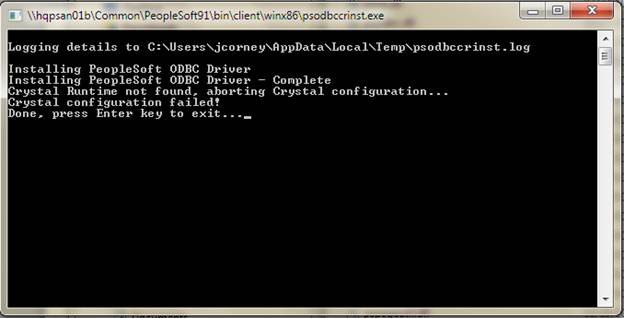
    Go to the C:\PeopleTools852\bin\client\winx86 folder on the user’s C drive and run psodbccrinst.exe.
    Executable Link: C:\PeopleTools852\bin\client\winx86\psodbccrinst.exe

    Note 1: Crystal is not part of this installation; ignore the message that Crystal configuration failed.
    Note 2: If the installation is not being run using an account that has admin privileges, attempting to run this script will error and at logon the user will receive a warning each time they logon.


    Pin nVision Executable icon to the user’s Start menu (Windows 7)

    Navigate to C:\PeopleTools852\bin\client\winx86 and right mouse click on psnvs.exe and select “Pin to Start Menu”.


    Rename the Start Menu shortcut

    Click the nVision icon on the Start Menu and choose Properties.
    Rename the icon to nVision from the General tab – include the release number if you wish:


    Confirm User’s Excel Macro Settings

    Ensure the user’s Excel Trust Center settings allow macros and access to the VBA project


    Install NVision Add-Ins from C:\PeopleTools852\excel

    If users will use the nVision web drilldown, install the DrillToPIA.xla and Nvsgo.xla.

    If the user has already had DrillToPIA.xla installed, you will receive an error. The add-in does not need to be reinstalled as it has not changed for the PeopleTools 8.52 release.

    Install the add-ins from the Add-Ins manager found under Excel Options:


    Minimum Files Needed for PeopleTools Client Installation

    When installing PeopleTools on a local workstation, you don’t actually need to copy the entire PeopleTools folder to the user’s hard drive. This would involve copying in excess of 6GB of data (PeopleTools 8.52.06). Copying such a large amount of data across a network can be problematic in that it will take several hours, and sometimes fail, especially is your user is remote. The minimum files to successfully run PeopleTools locally is a little over 2GB total, a much more manageable amount of data.

    The following folders are the minimum you require to successfully run PeopleTools from a local client: appserv, bin, excel, nVision, setup, and tuxedo.


    Please note that you can also reduce the data size greatly by only copying the English language versions of the nVision macro files (or the appropriate local language folder if your users are working in another language). So for example, if you are an English-language site, delete all the folders found under the Excel folder with the exception of the stylesheets folder. If you users are running nVision in one of the other languages, copy and replace the files in the local language folder to the root of the Excel folder.


    Interface Exception Error gridapp.ccp:1828

    Problem Statement

    Excel interface exception error gridapp.ccp:1828 SCODE = 0X80010001 is issued when a user attempts to close an nVision instance, drilldown, or other Excel workbook


    Root Cause

    Excel Interface Exception Errors are unfortunately a part of life with nVision. The messages given with them are often cryptic and no help at all in identifying the cause. 

    After extensive testing I have identified that this error occurs under the following circumstances (I have reported this issue to Oracle Support SR #3-5976739951):


    • The user has a large number of Excel files open (typically around 30+ files)
    • The user attempts to close an Excel file from the file stack in the Excel Taskbar group, and importantly, the file they attempt to close has unsaved changes. The error occurs whether the user uses the X available in Excel 2010, or by right-clicking and selecting close in either Excel 2010 or Excel 2007. The error is issued with the Save dialog.


    Note: The issue occurs frequently for our user community because many layouts select actuals and translate ledger data side by side and then sum them to the right. The ledger data columns are hidden using Excel grouping. To perform drilldowns on the ledger data, the users have to expand the grouping which places the instance into a "changed state" that Excel will issue a save dialog for when the user comes to close it.
     
    We are running on Tools 8.52.06. I have replicated this error on both Windows 7 with Excel 2010, and Windows XP with Excel 2007. I have also been able to replicate the error in Tools 8.52.06 DMO. I have an SR open with Oracle on this issue which appears to be some kind of bug. 

    Different error messages are issued once the user interacts with the Save dialog box. 


    If the user clicks Yes to save the file, they are presented with a suggested file name of :.xlsx. This is an illegal name for Windows. Saving the file with an appropriate name results in errors that refer to Excel 4.0 Functions and Excel 4.0 Macros.


    Excel 4.0 Function / Excel 4.0 Macro cannot be saved in a macro-free workbook


    At this point the user finds themselves in a loop with a macro error being issued no matter what action they take. The best way to escape is to use Task Manager to close nVision and Excel.


    Clicking No to the save dialog issues an error "Cannot run the macro 'NvdOnWindow'". The user is once again locked in a loop.


    Workaround

    We are currently testing the following workaround
    • Do not close files from the Excel group stack in the Taskbar. Rather, select the file you wish to close from the stack, and with that file active, close it from the workbook itself.